You have a video and you need its words in writing: a lecture to study from, an interview to quote, a meeting to share. Rewatching the whole thing and typing it out by hand takes hours — a one-hour video means hours of pausing, rewinding, and typing. There is a faster way — record the video's sound and let AI turn it into text.
Why transcribe a video to text
A transcript changes how you work with a recording. You can search for one phrase instead of scrubbing a timeline. You can copy a quote, paste it into a document, and move on. You can read a long lecture in minutes when you only need the key points. Text is also easier to share: many people will skim a document who would never sit through a video, and a document is kinder to anyone on a slow connection or a small screen.
For students, a transcript means lecture notes you can revise from — searchable, quotable, and condensed. For journalists and researchers, it means accurate quotes with the speaker attached to each line, so attribution stops being guesswork. For anyone who sat through a long meeting, it means a record you can search weeks later instead of relying on memory. And if you make videos yourself, a transcript gives you raw material for show notes, blog posts, and captions without starting from a blank page.
Which videos are worth transcribing
Almost any recording where the words matter more than the picture. Lectures and course videos, where the spoken explanation carries the content. Interviews, where you need exact wording and who said it. Meetings and webinars, where decisions and action items hide in an hour of talk. Conference talks and podcasts filmed on video, where one good quote is buried twenty minutes in. If you only need a short clip for its visuals, a transcript adds nothing — but if you need the content of the speech, text is the faster format. One practical rule: the moment you catch yourself reaching for the pause button to write something down, you have outgrown watching and need reading.
How to transcribe a video with Voxia
Voxia is an AI voice recorder for the phone. It records sound and turns speech into text, with speaker labels, an automatic structure, and an AI summary. To transcribe a video, record its sound and let the app do the rest.
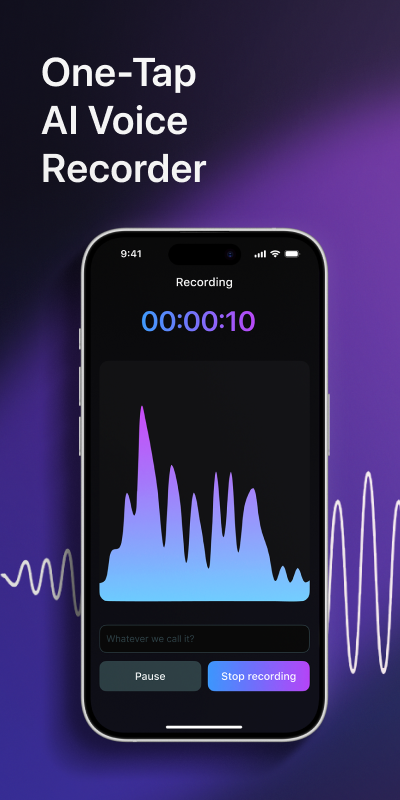
Open Voxia and tap record
Start a new recording, then play the video. Hold your phone near the speaker or play the video out loud; the app captures the sound like any other voice recording.
Let it record the full video
Voxia handles recordings up to 4 hours, so a lecture, an interview, or a full meeting fits in one go. Need a break? Pause the video; the recording waits for you.
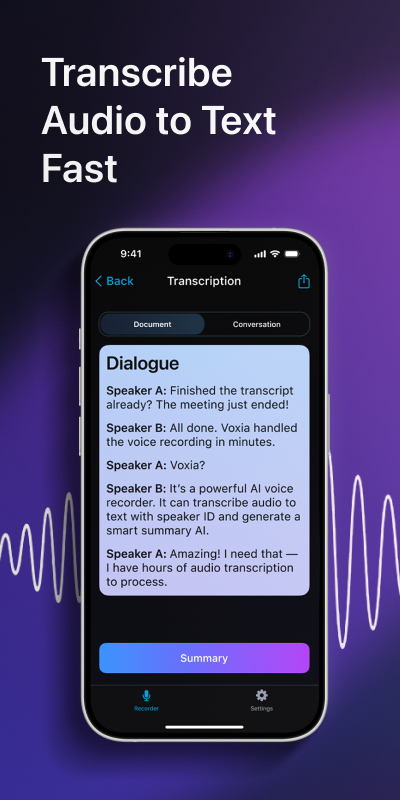
Read the finished transcript
When you stop recording, Voxia turns the speech into text, labels each speaker, and lays the conversation out in a clear structure you can skim.
Export or share
Send the transcript where you need it: export to Word or PDF, or share the AI summary with people who only want the takeaways.
What you get back
Raw audio gives you one long file and no way in. The transcript gives you labeled speakers, a clear structure, and a summary you can send without editing.
Raw recording
A long video: one audio file, no labels, no notes, and no fast way to find a single sentence in it
With Voxia
- Interviewer
- What changed for your team after you switched?
- Guest
- We stopped writing everything down by hand, and nothing got lost
Summary: Structured AI transcript with speaker labels and a ready summary
Get a clean transcript the first time
A few habits make the text easier to work with. Put the phone close to the speaker and set the video volume high enough for a clear signal, then do a ten-second test recording and listen back. Close windows, fans, and anything else that hums in the background; a quiet room is worth more than any setting. If the video is long, check the first minute of the transcript before you record the rest, so you catch a bad setup early. Speak of setup: if the video has music or heavy sound effects under the speech, those sections will be the hardest to transcribe, so note the timestamps and check them by ear afterward. And if the video matters — a graded lecture, a quoted interview — keep the original file until you have checked the text against it.
Check the quotes before you publish
A transcript gets you ninety percent of the way; the last ten percent is verification. Before you quote anyone in print, open the video at the timestamp and listen to the line again. Check names and numbers by ear, because those are exactly where automatic transcription slips — a misheard figure is worse than no figure. When two speakers talk over each other, the labels can tangle, so confirm who said the line you want to use. None of this takes long against the hours you would have spent typing, but it is the difference between a transcript you can stand behind and one you cannot.
Where to go next
If you record on an iPhone, our guide to transcribing audio to text on iPhone covers voice memos as well. For meetings and interviews, see how an AI note taker turns recordings into structured notes. Wondering whether a free online converter is enough? Read free online voice to text vs an app for long recordings before you decide. Questions about the app live on the support page.
Frequently asked questions
Can Voxia transcribe a video that is longer than an hour?
Yes. Voxia records up to 4 hours of audio in a single recording, so long lectures, interviews, and meetings all fit.
Does the transcript show who said what?
Yes. Voxia labels speech by speaker, so you can tell the interviewer from the guest without guessing.
Can I export the transcript to a document?
Yes. Export the finished text to Word or PDF, or share the AI summary with people who only need the takeaways.
The video has background noise. Will the transcript still work?
Put the phone near the speaker, cut background noise where you can, and record a short test first so you can check the sound before the full run.
Can I transcribe my own videos for notes or captions?
Yes — record the video's sound with Voxia, then export the text to Word or PDF and use it as a starting point for show notes, captions, or a blog post.
Pick the video you keep meaning to capture, record its sound, and read the transcript instead of rewatching it. Get Voxia for iPhone and try it on your next lecture, interview, or meeting.
Transcribe your next video with Voxia
Download on the App Store